Graduate Studies and Postdoctoral Affairs (GSPA)
Needles Hall, second floor, room 2201
Year after year, international and Canadian rankings place the University of Waterloo among the best universities in the world.
Waterloo is pleased to provide the President's Graduate Scholarship (PGS) to outstanding graduate students who hold major federally and provincially funded competition-based scholarships.
Do you want to be a part of the University of Waterloo graduate studies community? Explore our more than 180+ master's and doctoral programs.
The prestigious Banting Postdoctoral Fellowship for the 2024-2025 competition has been officially launched!
This fellowship program provides funding to outstanding postdoctoral applicants, both nationally and internationally, who contribute significantly to Canada’s economic, social, and research-based growth.
As of April 2, 2024, the Graduate Studies Academic Calendar has a new look and feel. A new software system is being used to publish the academic calendar, resulting in a few key changes.
The Lake Shift is back! Graduate Studies and Postdoctoral Affairs is thrilled to announce that we will be sending two doctoral students to experience the fun and writing development opportunities offered through Lake Shift.
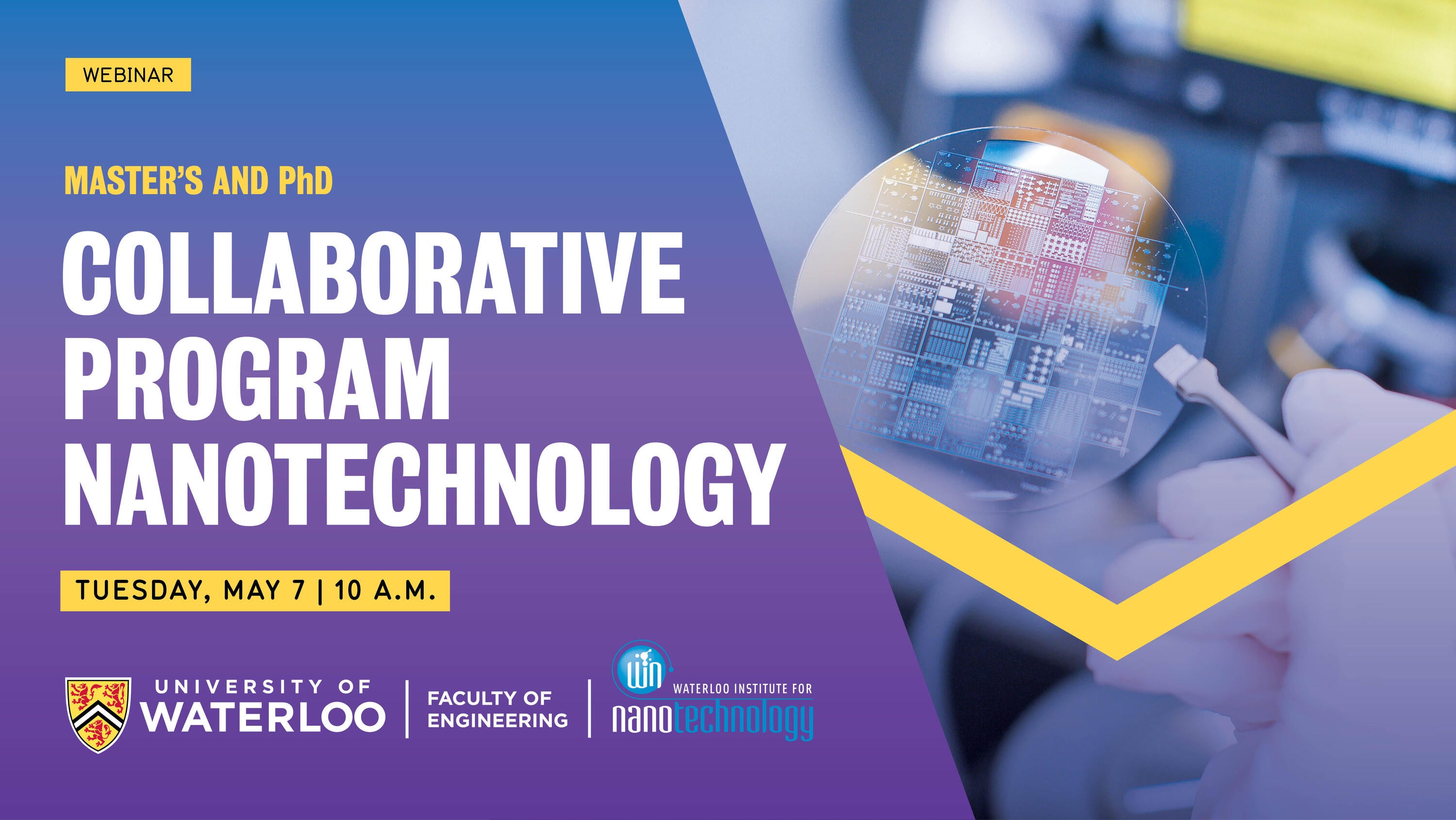
Through the collaborative graduate program in Nanotechnology students are exposed to rich, broad and integrated educational resources, a diverse network of expertise and world-class research opportunities that leverage their engineering degrees. Join this session and learn about the Master's and PhD Collaborative programs in Nanotechnology in the Faculty of Engineering.
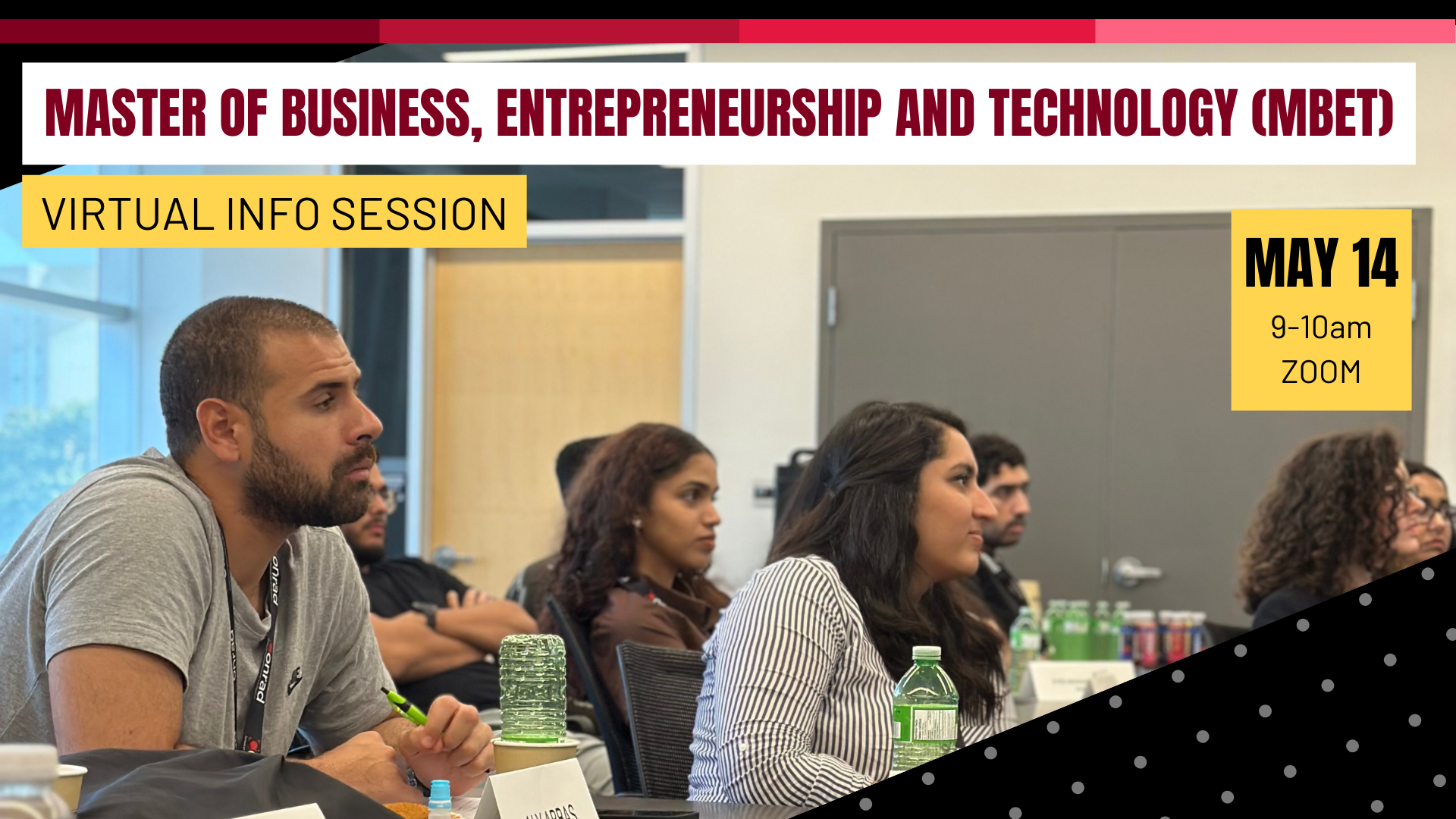
MBET students make new things happen. They focus on the commercialization of their ideas to build a new venture or have a novel approach within existing organizations. In this info session learn about the program, hear about the student experience and what happens to our graduates. Discover why Waterloo is the place for entrepreneurs to grow.
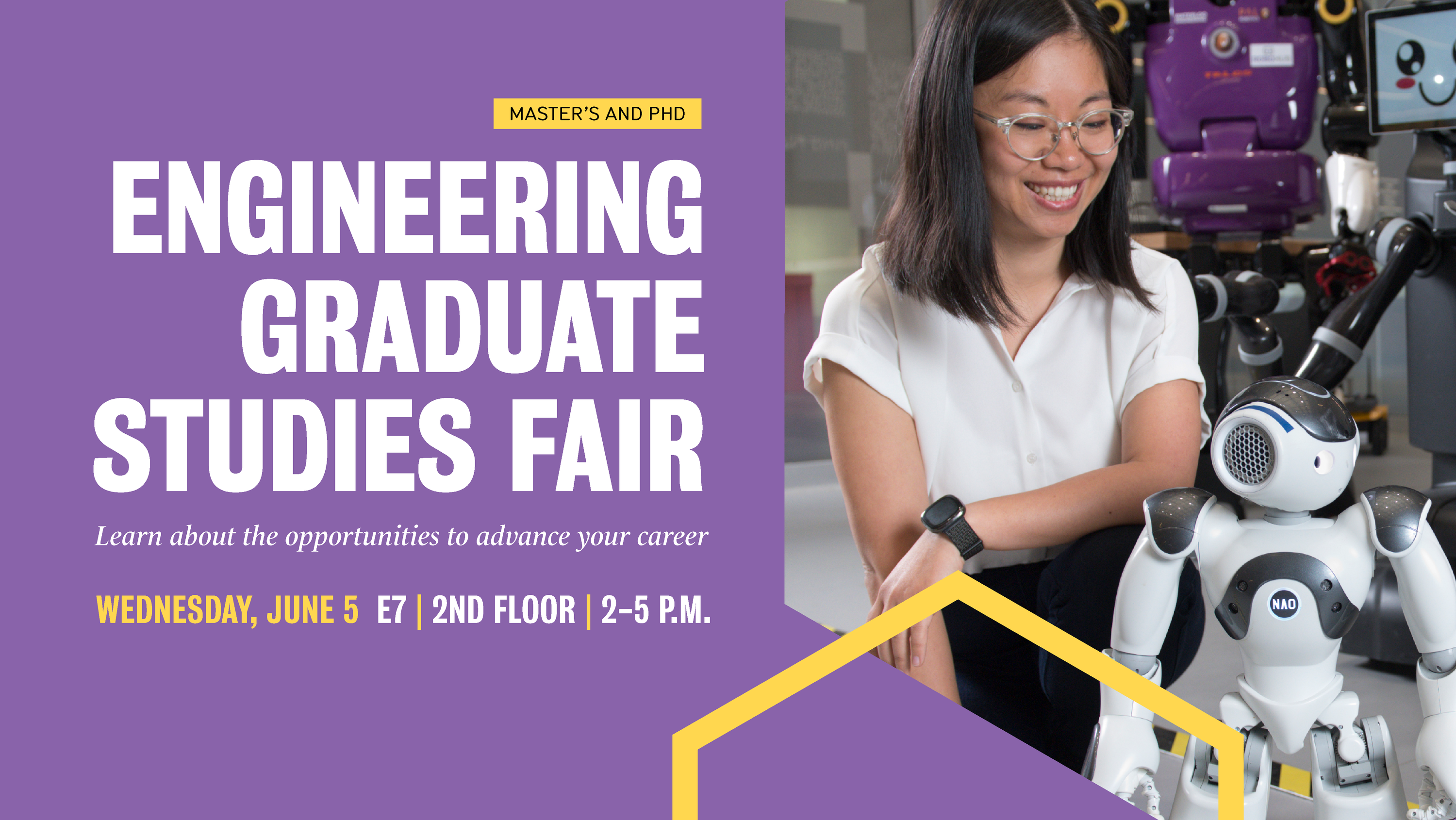

At Waterloo we understand that many of our graduate students are (or are about to become) parents who are trying to balance their studies with family obligations.
Answering some common questions about the recently updated Policy 30: Employment of Graduate Student Teaching Assistant.
In the academic context, we often refer to graduate students as if they belong to one group, defined by their engagement in graduate studies, however, in reality, we know that each of our graduate students is unique.


